
When you use AI to draft documentation, whether tutorials, guides, or API references, you save hours of writing time.
The problem is that AI-generated content often contains AI patterns that could erode developer trust:
“It’s important to note that…”
“In the landscape of software development…”
“This isn’t just X; it’s Y.”
Even when your content is technically accurate, these patterns make it sound lazy.
You could manually review every piece of content to catch these patterns, or you could automate your review process to catch them instantly.
This guide shows you how to use VectorLint to automatically check for AI patterns in your Docs as Code workflow.
VectorLint, AI-Assisted Editing
VectorLint is an AI-powered prose linter that enables natural-language standard enforcement.
It uses LLM-as-a-Judge to evaluate content and catch quality issues, making it possible to catch issues like terminology and spelling errors that only require pattern matching, and also those that require contextual understanding, such as AI patterns, Search Engine Optimization (SEO) problems, and technical accuracy.
As a command-line tool, it runs in CI/CD pipelines, enabling a shared quality gate across your teams, preventing errors from reaching production.
To get started, install VectorLint on your computer.
Installing VectorLint
Install VectorLint: To install VectorLint globally, run:
npm install -g vectorlintVerify installation:
vectorlint --versionAlternatively, you can run it directly using
npx:npx vectorlint
Configuration
Before you can review content with VectorLint, you need to connect it to an LLM provider.
Initialize VectorLint: Run the initialization command to generate your configuration files:
vectorlint initThis creates two files,
.vectorlint.iniwhich contains project-specific settings
and~/.vectorlint/config.tomlwhere you configure your LLM provider settings.# VectorLint Configuration # Global settings RulesPath= Concurrency=4 DefaultSeverity=warning # Default rules for all markdown files [**/*.md] RunRules=VectorLintThis configuration tells VectorLint to check all Markdown files using the bundled
VectorLintpreset.Configure your API keys: Open your global config file (
~/.vectorlint/config.toml) and uncomment the section for your preferred LLM provider. VectorLint supports OpenAI, Anthropic, Google, and Azure models.# --- Option 1: OpenAI (Standard) --- # LLM_PROVIDER = "openai" # OPENAI_API_KEY = "sk-..." # OPENAI_MODEL = "gpt-4o" # OPENAI_TEMPERATURE = "0.2" # --- Option 2: Azure OpenAI --- # LLM_PROVIDER = "azure-openai" # AZURE_OPENAI_API_KEY = "your-api-key-here" # ... # --- Option 3: Anthropic Claude --- # LLM_PROVIDER = "anthropic" # ANTHROPIC_API_KEY = "your-anthropic-api-key-here" # ... # --- Option 4: Google Gemini --- # LLM_PROVIDER = "gemini" # GEMINI_API_KEY = "your-gemini-api-key-here" # ...Uncomment your preferred provider and add your API key. See the configuration guide for full details.
Create a test file: Create
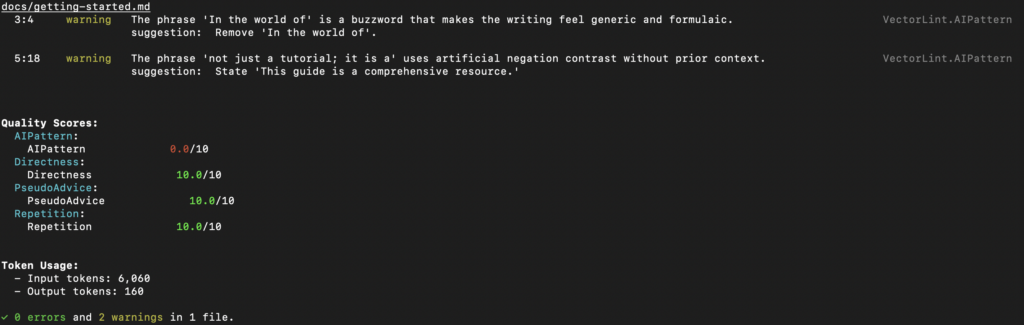
docs/getting-started.mdwith some content containing AI patterns:# Getting Started In the world of software development, getting started with any new tool can be daunting. This guide is not just a tutorial; it is a comprehensive resource for developers.Configure AI pattern detection: VectorLint comes bundled with a
VectorLintpreset that includes AI pattern detection rules. Theinitcommand automatically configures this in your.vectorlint.inifile. TheVectorLintpreset includes these rules: AI-Pattern, Directness, PseudoAdvice, and Repetition. Rules in rule packs are automatically enabled unless explicitly turned off. For this guide, you only need the AI-Pattern rule, so turn off the others in your.vectorlint.ini:[VectorLint] Directness = disabled PseudoAdvice = disabled Repetition = disabled
Running Your First VectorLint Check
To run VectorLint on a file, use the command:
vectorlint docs/getting-started.mdVectorLint should output a quality report in your terminal:
Adding VectorLint to Your CI/CD Pipeline
Integrate VectorLint into your GitHub Actions workflow to automatically check documentation on every pull request.
To add VectorLint to your CI/CD pipeline, create .github/workflows/lint-docs.yml:
name: Lint Documentation
on: [pull_request]

jobs:
  vectorlint:
    runs-on: ubuntu-latest
    env:
      OPENAI_API_KEY: ${{ secrets.OPENAI_API_KEY }}
    steps:
      - uses: actions/checkout@v3

      - name: Setup Node
        uses: actions/setup-node@v3
        with:
          node-version: '18'

      - name: Run VectorLint
        run: npx vectorlint docs/*.md
This workflow runs VectorLint on every pull request, checking all modified Markdown files against your quality rules. If VectorLint finds quality issues, the build fails, and the quality report appears in the PR comments.
Next Steps
You’ve now automated the detection of excessive hedging in your documentation. But there are more AI patterns worth catching:
Expand your rule pack:
- Define rules that match your company’s style guide
- Share your rule packs across repositories
- Use VectorLint scores as a metric for documentation quality
By creating more rules, you can automate more quality checks and save time on content review. This helps you keep up with development velocity while maintaining the quality and trust your brand depends on.